Lecture 5 Introduction to Numpy
Slides
A static version of the notebook can be found here
Using Marimo
There are a number of Notebooks in the lab code to introduce you to Marimo. You can find them here
Accessing Marimo via SSH
It is possible to run a notebook on the lab machines and view it in your browser via SSH. You must first has access to the lab machines via VPN which can be requested from the IT team.
First you must be logged into the university VPN and then use SSH to connect to the lab machines as follows :
ssh [lab_machine_name]
In the folder you wish to run you notebook in use the following command (note you will need marimo installed as a uv package for this to work)
cd SEForMedia
uv run marimo edit --headless --watch --host 0.0.0.0 --port 8080

Create or edit notebooks in your browser 📝

        ➜  URL: http://0.0.0.0:8080?access_token=KLWkbibkrzOPubPOVKwICw
        ➜  Network: http://[lab_machine_name]:8080?access_token=KLWkbibkrzOPubPOVKwICw

        💡 Tip: Install shell completions
                $ marimo shell-completion
In this case I am running the notebook on the lab machine [lab_machine_name] and accessing it via the network URL http://[lab_machine_name]:8080 port 8080 is generally ok for lab access but if you have other things running on port 8080 you may need to change it.
--headlessoption is used to run the notebook in the background without a browser window.--host 0.0.0.0option is used to bind the notebook to all network interfaces so it can be accessed from any machine.--port 8080option is used to specify the port to bind the notebook to.--watchoption is used to automatically reload the notebook when changes are made externally (i.e. when you save the notebook in your editor)
Next we need to create an ssh tunnel to access the notebook in your browser on your local machine.
ssh -N -L 8080:127.0.0.1:8080 [username]@[hostname]
Note you will need to replace [username] and [hostname] with your actual username and hostname and the ports to match your notebook’s port if it is not 8080.
You can then access the notebook in your browser on your local machine at http://localhost:8080. which will present you with a login page.
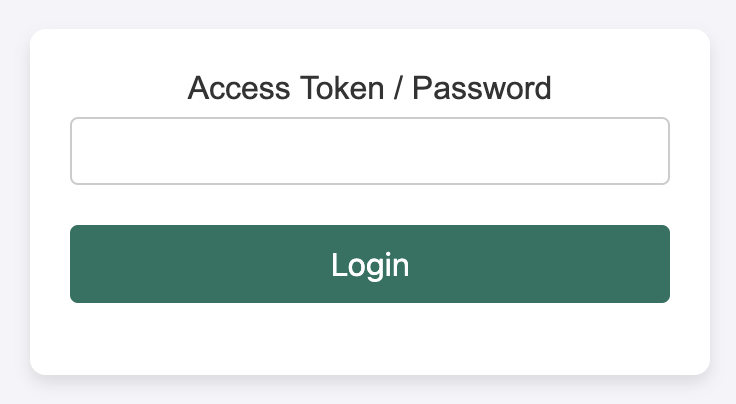
Enter the token you received from the marimo command into the login form and you will be redirected to the notebook.